Capture records what you hear, including Chew / Glitch and speed changes. Up to 3 minutes.
One pass · forward · 1.00×
Choose up to four files. One song can play in full before Cut Up; cutting uses the first two minutes of each file. For screen recordings, only the audio is used. MP4/MOV support depends on the audio codec and browser.
Use a direct audio-file link. Player pages such as YouTube and Spotify are unsupported. If a site blocks importing, download the file and choose it above.
Keep up to eight arrangements on this device, with their sources and playback settings. Save audio for a copy you can keep elsewhere.
No kept variations yet.
Current arrangement renders your chosen direction and length. Random effects make a new variation. Captured performance saves the actual playback, including its direction and effects, with tiny fades at the clip’s outer edges to prevent clicks. Capture also finishes on Stop, a direction change, or after three minutes. The latest capture is remembered on this device.
Fullscreen: use the corner button on the instrument to hide the controls and show only the reels or scopes. Playback continues. Press left/right arrows or < / > to cycle skins, and Esc to return. On iPhone or iPad, swipe the instrument left/right with two fingers to change skins, in normal or fullscreen view. Double tap the fullscreen view to return; a single tap keeps it open.
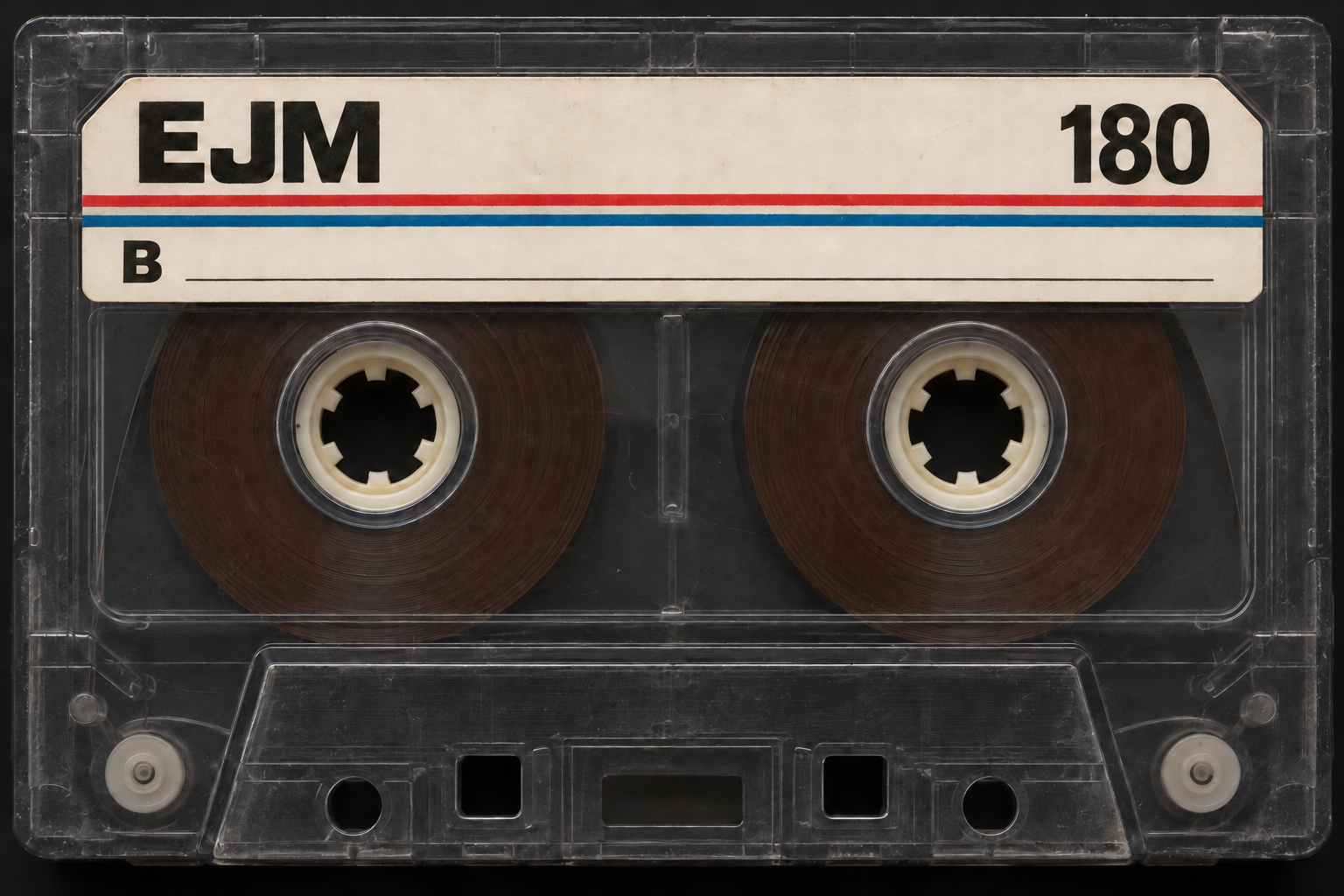
Tape character: each appearance has its own sound. Sound Scope looks like an olive-drab military prototype, with matte CRT screens and embossed Dymo labels. It shows left and right audio on two circular oscilloscopes and is clean, with no player colour. Stop holds the last traces and extinguishes the LED level meters. The left and right LED meters grow from the centre outwards with their channel’s volume; mono drives both screens and meters equally. Vectors also keeps the sound clean. It shows left/right and mid/side phase portraits, surrounded by cyan and violet rings that respond to each channel’s frequencies from low to high: clockwise around the left/right plot, anticlockwise around the mid/side plot for mirror symmetry. Cyan and violet fill the areas outside the frequency contours, growing stronger towards the centre and fading to transparent at the circle edge. Brighter recent traces and a mirrored frequency meter reveal the sound’s detail: cyan left channel on the left, violet right channel on the right, with 30 Hz at the centre and both sides extending outwards to 20 kHz (or the recording’s frequency limit). Mono correctly forms a line in the phase plots; the frequency rings still respond to its changing tone. Stop holds the display, and reduced motion lowers visual updates. 1970s adds gentle reel-to-reel warmth and soft saturation; Cassette has a rounded 1990s player tone; Collage passes through a short, hollow cardboard-box IR; 8-bit gives recordings a lo-fi digital sound: driven, grainy and deliberately rough, with added treble and clearer upper harmonics. The player tones and cardboard-box IR are modelled, not measured hardware or room captures. Colour is always on in the four character skins and included in audio and video saves. Switching skins keeps your source recording and edits intact. Existing microphone processing and the output limiter still apply. The effect key is Glitch on Sound Scope and Vectors: brief, irregular granular stutters with hard left/right ping-pong and tremolo that ratchets faster, slower, or up and down, separated by clean playback. Some bursts hold their rate instead of ratcheting. The tape skins retain Chew. Glitch uses short overlapping grain fades and does not drag the transport speed. Your choice is remembered on this device.
RECORD: replaces the main take with up to three minutes from your microphone. Stop to hear it backwards. Reverse and Forward remain play controls; Stop ends playback or recording. Playback accelerates and stops over 0.1 seconds. Open Input to find available sources automatically, then choose Microphone or another source before pressing RECORD. Microphone playback uses an 80 Hz low-cut, a gentle 240 Hz cut for muddiness, a broad 3.2 kHz presence lift and a subtle 8 kHz air shelf. Level trim is capped at ±12 dB, followed by gentle 2.5:1 compression and 2 dB makeup. Pauses do not drive the level adjustment. Internet, radio, field and imported audio bypass this microphone processing. All playback passes through one final, linked −0.1 dBFS limiter after the complete mix and tape-speed playback.
Computer / tab audio: choose this Input, press RECORD, then choose a screen, window or tab and enable audio in the browser’s sharing picker. Recent Chrome on macOS 14.2 or later can offer Mac system sound; other browser/OS combinations may offer only tab sound or none. Allow Screen & System Audio Recording when macOS asks. Video is never stored. If no audio is shared, your previous tape stays intact. For unsupported browsers, route sound through BlackHole and choose it as Input, or import an audio file. System sound is not monitored back through TAPEEPAT, preventing a feedback loop.
Other inputs: records your selected routed input and passes it to the current listening output, or a selected output where your browser supports it. Monitoring has no added gain or EQ and uses the −0.1 dBFS limiter. Stopping recording stops monitoring. On Mac, use a virtual cable such as BlackHole and select a separate physical listening output to avoid a feedback loop. On iPhone, use Import audio for a compatible screen recording instead.
Keyboard: Space plays or stops; left/right arrows or < / > cycles through skins; up/down jumps through ¼×, ½×, 1×, 2× and 4×; R starts a new recording from the selected input; L toggles Loop; C cuts up the tape; ⌘/Ctrl Z undoes a cut and ⌘/Ctrl Shift Z redoes it. These shortcuts also work in fullscreen. Shortcuts are inactive while entering text or using a settings dialog.
Slide Tape speed anywhere from ¼× to 5×. Speed changes pitch, just like tape. Loop repeats the selected direction. Save length chooses one pass or a timed loop.
Random speed: switches on instant, repeated speed jumps between ¼× and 5×, at random intervals of half a second to two seconds. Works forwards, backwards and with Loop. Press again to hold the current speed, or move the slider to take over. Jumps pause when playback pauses or stops. For a one-pass export, Save direction uses the final displayed speed. Choose a timed loop under Save length to render up to ten minutes. With Random speed selected there, the file includes a fresh sequence of the same random speed jumps; it does not record the exact jumps from your earlier listening. Both channels and every included source follow the same speed and direction. Cancel render stops preparation.
CHEW: makes the tape briefly snag and recover: near-stalls, plunging pitch, unstable speed surges, chattering, dropouts, muffling and crunch, with crossfaded left/right swaps on stereo recordings. These happen together as one sporadic event. The first arrives within roughly 1.5 seconds; irregular 1.2–5.4-second bouts repeatedly catch, drag, flutter and release, separated by unpredictable short recoveries. It then settles back to steady tape. CHEW is the only control for this tape-damage effect. Press again to switch it off. CHEW affects every included source and both channels together, adds no hiss, and is included in saved audio and video as a fresh variation when rendering an arrangement. Capture performance preserves the exact CHEW events you heard.
Cut Up: cuts voice, included radio and field recordings into random 0.2–4-second slices on every press, reverses two randomly chosen slices containing voice, and shuffles the slices. If there is only one slice, that one is reversed. Cuts move to nearby zero crossings, with 1.5 ms raised-cosine fades at every slice edge for stereo and reversed material. Timing and source samples are preserved. Undo and Redo step through recent Cut Up passes; Keep variation saves a favourite on this device. Press it again to cut and shuffle the whole current result, across all previous joins, including sounds already added. Each pass builds on the last without adding length. Switching either source off removes only its pieces and keeps the other edits.
Add your own recording: choose up to four audio files. With one uploaded song and no recorded take or existing cut-up, press Forward to hear the full song immediately, including stereo. Space also starts it forwards. Cut Up is separate and uses the first two minutes of each imported file; Remove takes only that recording out. Files stay on this device. Record captures a new microphone take of up to three minutes. Added sources can make the finished arrangement longer.
Add radio: adds up to one minute: four speech stations and two music stations, ten seconds each. Ambient adds the same duration of original field recordings. For a voice take shorter than one minute, each source matches its length; for longer takes, each supplies one minute. Both are sliced between your recordings, with no added silence. Repeated Cut Up presses rearrange the same material without adding length. Radio plays 5 dB lower and bypasses voice EQ; playback shares the final −0.1 dBFS limiter.
Radio tries live stations first through this website. If a station fails, successful clips are kept while reserve stations are tried. Missing slots can use earlier recordings from the same Irish calendar day, when available. The Radio indicator shows Live or Today with the oldest fallback capture time in Ireland. Yesterday’s cached clips are never selected. A fresh day’s fallback becomes available as stations are successfully captured; it is not guaranteed. If fewer than six clips are ready, press Cut Up to retry only the missing slots. Radio needs an internet connection and may take a little longer to arrive. Turning Add radio off removes it from playback and exports. On reopening, Add Radio and Add Ambient start off. Speech stations include BBC World Service, NPR, WNYC, Newstalk, KQED, franceinfo and France Culture. Music channels come from SomaFM. Station programmes may include musical idents or interludes.
Add ambient: turns green when enabled. Each take selects four wildlife clips—birds, sheep, frogs or geese—and two local nature excerpts. The pool is one minute, reduced to match a shorter main take. If an online wildlife source cannot load, Scottish morning birds and coastal sounds fill its place. Further Cut Up presses recut the same material without adding more. Field recordings bypass voice gain and EQ and share the final −0.1 dBFS playback limiter.
Field recording credits: CC0 recordings from Freesound, allowing reuse and remixing: Sheep — nomadas; Birdsong — hairpin79; Grand Pre birds — greysound; Frogs and geese — DBlover; Night frogs — sokworks; Scottish morning birds — inchadney; Fife beach — ukjoncollins.
Save video: saves just the selected instrument view at 1920 × 1080 and up to 30 frames per second. The complete instrument stays visible with matching side margins. Sound Scope saves the two live oscilloscopes and stereo LED meters. Vectors saves the same reactive frequency rings and phase traces. It uses the same prepared audio as Save audio, including the chosen direction, length, speed, random speed and Chew / Glitch. The moving reels or oscilloscope traces follow that exact render. Saving takes approximately the video’s duration; keep this tab visible and use Cancel render to stop. The file is MP4 when the browser supports it, otherwise WebM.
Saved and shared audio includes the playback gain and filtering for each source, followed by the final linked −0.1 dBFS limiter. Your cut-up arrangement is kept. One pass uses the displayed fixed speed; timed loops can include random speed jumps. Choose Forwards or Reversed beside Save direction. Files use 32-bit float WAV to preserve the audio.
Output: choose speakers, headphones or an audio interface for playback and Aux Input monitoring. Where the browser cannot select an output, use your Mac or iPhone sound controls.
Destroy: clears the current recording, edits, radio, field recordings, imported files and latest session. Your kept variations and last captured performance remain available.
To send a recording: choose Share audio to open your device’s share sheet. When file sharing is unavailable, a WAV downloads for you to attach.
Add to iPhone:
Keep the app open while recording. Your latest take is remembered here; save a WAV copy to keep it permanently.